


How to Refresh Internet Browser
If you’re wondering how to refresh internet browser pages effectively, this guide covers everything from using the reload button and hotkey commands to performing a hard refresh and clearing your browser cache. Whether you’re dealing with outdated content, slow loading times, or common website loading issues, knowing how to refresh your internet browser—on desktop or mobile—can quickly resolve browser inconsistencies. Learn the key combinations, when to clear cached content, and how to troubleshoot issues across popular browsers like Chrome, Firefox, Edge, Safari, and Opera for a smoother user experience.
Introduction
Whether you’re troubleshooting issues with browsers or simply trying to see the most precise content on a web page, knowing how to refresh your internet browser window can make all the difference. As a WordPress expert and staff writer who regularly deals with browser inconsistencies, one of the first solutions I recommend for loading issues, cache issues, and outdated content is to perform a browser refresh.
This guide covers everything you need to know—from the reload button to advanced browser force refresh methods across desktop browsers and mobile devices. We’ll also explore how caching issues can impact your user experience, and how to handle them efficiently across different internet browser windows.
Why Refreshing Your Browser Matters
A browser refresh simply means reloading the current page in your browser window, allowing you to view the most up-to-date version of a site. It’s a great way to fix common website loading issues, view recently updated content, or clear up mystery issues caused by outdated files stored in the browser cache.
There are two primary types of browser refresh:
- Standard Refresh – Reloads the page from cached data, using the curved arrow or reload icon in the upper-right corner of the browser address bar.
- Hard Refresh (or browser force refresh) – Bypasses the browser’s cache entirely and pulls fresh content directly from the server.
What Happens When You Refresh a Browser?
Your default web browser stores files like images and scripts in the browser cache—known as Cached Images and Files or Temporary Internet Files and Website Files. This speeds up future visits, but it can cause frequent website loading issues if the cache becomes outdated or corrupted.
Standard vs Hard Refresh
|
Refresh Type |
Uses Cache? |
Source |
Fixes |
|---|---|---|---|
|
Standard |
Yes |
Cached + Server |
Minor glitches |
|
Hard Refresh |
No |
Direct from server |
Outdated content , display errors |
These refresh types apply across desktop browsers like Chrome, Firefox, Edge, and Opera Internet Browsers, as well as mobile apps like the browser app on Android and iOS devices.
Methods to Refresh Your Browser
Standard Refresh
Keyboard Shortcuts (Hotkey Commands):
- Windows/Linux:
Ctrl + RorF5 - Mac:
Command + R
These simple keyboard shortcuts are among the fastest ways to reload a page.
Reload Button:
Click the gray arrow, green arrows, or curved arrow icon usually found in the top-right corner near the browser address bar.
Mobile Devices:
On your Android device or iPhone/iPad, open the browser app, then swipe down from the top of the page to trigger the pull-to-refresh gesture—a common method in browsers like Chrome, Safari, and Firefox.
Hard Refresh
Why Perform a Hard Refresh?
A hard refresh clears cached web content to prevent potential issues related to the entire browser cache. It’s ideal when your default browser is still showing outdated content after you’ve made changes in WordPress.
Key Combinations for Hard Refresh:
|
OS |
Shortcut 1 |
Shortcut 2 |
|---|---|---|
|
Windows/Linux |
|
|
|
Mac |
|
|
These key combinations bypass your browser caches and are invaluable for developers and website owners alike.
Using Your Mouse:
Hold the Shift key, then click the reload icon or curved arrow in the upper-right corner of your internet browser window.
Clearing Cache and Cookies
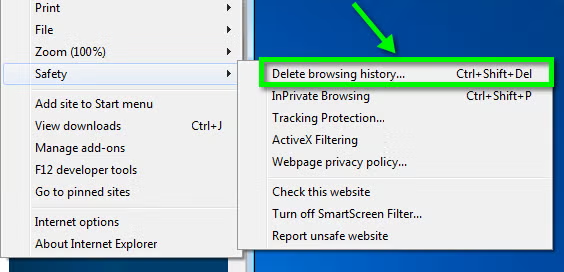
If even a hard refresh doesn’t solve the problem, it’s time to manually clear your browser cache. This step can resolve caching issues, random times when a page won’t load, or other troubleshooting issues related to stored temporary web files.
Step-by-Step Guide:
|
Browser |
Cache Clearing Steps |
|---|---|
|
Chrome |
|
|
Firefox |
|
|
Safari (theSafari browser) |
|
|
Edge |
|
These steps ensure that the entire browser cache is removed to prevent future problems.
Browser-Specific Refresh Instructions
Google Chrome
- Standard Refresh:
Ctrl + Ror click the reload button in the top-right corner. - Hard Refresh:
Ctrl + F5orCtrl + Shift + R - Clear Cache: Go to the dots menu (three vertical dots) > Settings > Clear Browsing Data.
Mozilla Firefox
- Standard Refresh:
Ctrl + R - Hard Refresh:
Ctrl + F5orShift + reload button - Clear Cache: Use the menu icon (three horizontal lines) > History > Clear Recent History
Microsoft Edge
- Standard Refresh:
F5orCtrl + R - Hard Refresh:
Ctrl + F5orCtrl + Shift + R - Clear Cache: Navigate through the dots menu > Privacy, Search, and Services
Safari (theSafari browser)
- Standard Refresh:
Command + R - Hard Refresh:
Command + Option + RorCommand + Shift + R - Clear Cache: Menu bar > History and Website Data > Clear History
Troubleshooting Common Issues
If Refreshing Doesn’t Work:
- Check your computing device’s network connection.
- Clear the entire browser cache and cookies.
- Restart the browser app or your default browser.
- Reset your default browser settings using the settings menu or menu toolbar.
- In Chrome, try the Safety menu > Reset Settings.
For WordPress users:
- Clear plugin and CDN cache.
- Disable conflicting plugins.
- Check if your default web browser has outdated extensions.
FAQs
1. What’s the difference between a standard and hard refresh?
A standard refresh reloads the page using cached files, while a hard refresh clears the cached content and loads everything new, bypassing any browser caches.
2. Will clearing cache delete saved passwords?
No, clearing Cached Images and Files won’t affect passwords. But clearing all data may log you out of websites.
3. How do I refresh on mobile browsers?
In your browser app, use the pull-to-refresh gesture—swipe down on the screen.
4. Why does my site still look broken after refreshing?
You’re likely viewing outdated content due to a cache issue. Try a hard refresh or clear your browser caches.
5. How often should I clear my cache?
Clearing your cache every time interval of a few weeks helps prevent future issues and improves loading times.
Final Tips for Better Browser Management
- Memorize hotkey commands like
Ctrl + RandCtrl + F5for fast reloading. - Use auto reload extensions if you’re testing updates frequently.
- Regularly clear your Cached Web Content to reduce processing time and fix frequent website loading issues.
- Keep your default browser settings optimized for performance.
Refreshing your browser isn’t just a beginner move—it’s one of the most effective ways to resolve a wide range of issues with browsers, especially while managing or editing websites through WordPress. Whether you’re using Opera Internet Browsers, Chrome, Firefox, or the theSafari browser, understanding how to handle cache issues and refresh content can drastically improve the user experience for both you and your visitors.


Leave a Reply